Remote Agents Guide
Connect coding agents running on your computer — Claude Code, Antigravity, Codex, and Hermes — straight to the HITL mobile app over your local network or Tailscale using hitl-channel. No cloud relay required. Looking for cloud-brokered MCP tools, REST APIs, or E2EE proxy setup? See Advanced: MCP through the cloud relay below.
1. What HITL Channel is
hitl-channel runs locally next to your terminal or coding harness. Your phone talks directly to your computer over Wi-Fi/LAN or your private Tailscale tailnet — with no cloud intermediary sitting between your phone and your host machine.
HITL Channel (Main Path)
- Live output streaming and tool progress cards
- Mid-turn queueing & one-tap Stop host turn
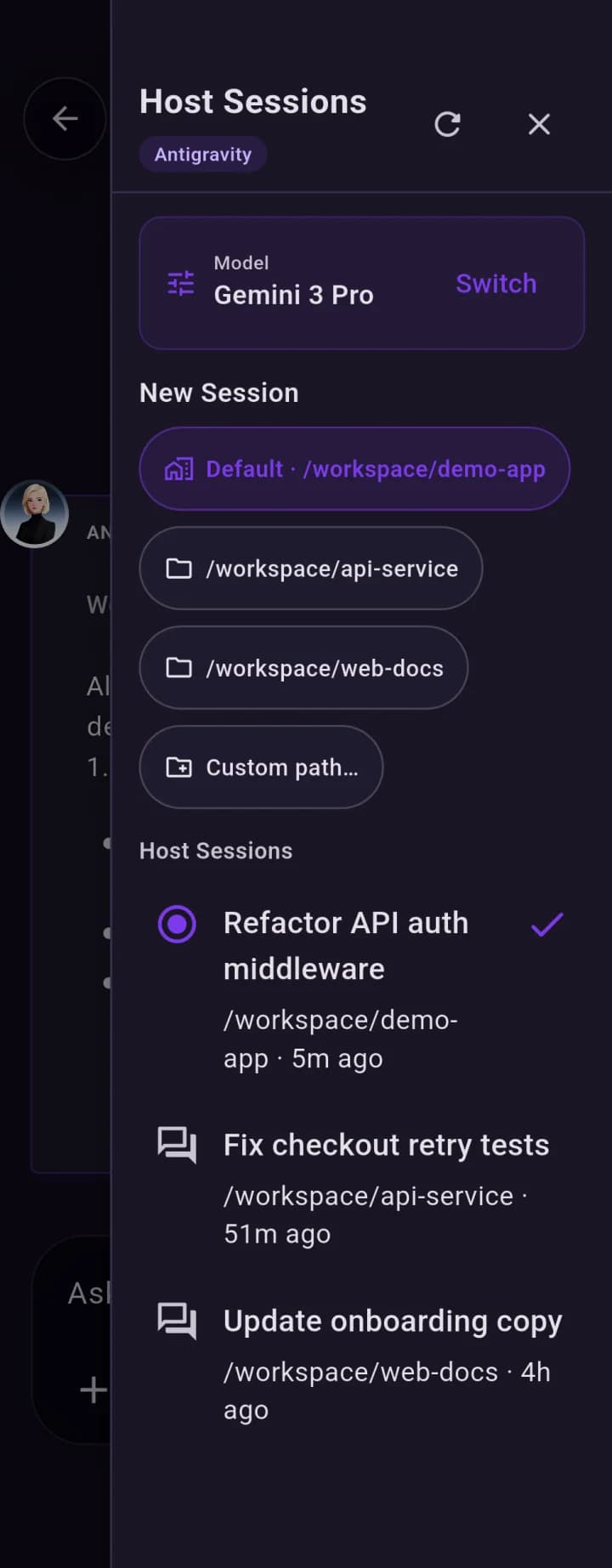
- Switch sessions, folders, and active model from your phone
- Zero cloud intermediary between phone and computer
Cloud Relay MCP (Advanced Option)
- Works across networks without LAN or Tailscale
- Supports Cursor, Windsurf, Zed, ChatGPT, and custom scripts
- Provides push notifications & optional E2EE via
hitl-cli proxy - Ideal for one-shot approvals and async scripts
2. Prerequisites
- Bun (recommended and required for
daemonmode) or Node.js 20+ (for Claude Code channel mode). - At least one supported coding agent installed and signed in on your computer: Claude Code v2.1.80+, Antigravity CLI (
agy), Codex (@agentclientprotocol/codex-acpor automaticnpxfallback), or Hermes Agent (hermes). - Network reachability: Your phone and computer on the same Wi-Fi/LAN (supports automatic mDNS discovery) or connected to the same Tailscale tailnet.
- Optional hook isolation: If you previously installed
hitl-clireview/notify hooks, updatehitl-cliso hooks respectHITL_DAEMON_SESSION=1and stay silent when the daemon drives a session directly.
3. Install hitl-channel
Clone hitl-channel once on your computer and install its dependencies with Bun:
git clone https://github.com/slaser79/hitl-channel.git
cd hitl-channel
bun install
4. Choose & start your coding agent
Pick the agent you use below. Each harness binds its own default port so you can run several harnesses side by side on the same computer with separate identities.
Claude Code
Connect a live Claude Code terminal session directly to your phone so you can message it, answer prompts, and steer tasks while away from your desk.
- Claude Code v2.1.80+ installed and signed in
- Bun installed (or Node.js 20+)
1. Register hitl-channel in your project's .mcp.json
Replace /path/to/hitl-channel with the directory where you cloned the repository.
{
  "mcpServers": {
    "hitl-channel": {
      "command": "bun",
      "args": ["run", "/path/to/hitl-channel/src/server.ts"],
      "env": {
        "HITL_CHANNEL_PORT": "8789"
      }
    }
  }
}
2. Launch Claude Code with channels enabled
Start your session from the project folder:
claude --dangerously-load-development-channels server:hitl-channel3. Pair on port 8789
In HITL, open Agents → Connect a remote agent → Start Pairing, pick Discover or Manual Entry with port preset 8789, tap Connect, and enter the 6-digit code printed in your Claude Code session.
- Replies come back through the reply_to_hitl channel tool over WebSocket.
- Using hitl-cli Stop/notify hooks? Update hitl-cli so HITL_DAEMON_SESSION=1 isolation prevents duplicate cloud-relay prompts inside daemon sessions.
5. Pair from your phone
- Open the HITL app on your iPhone or Android device and go to the Agents tab.
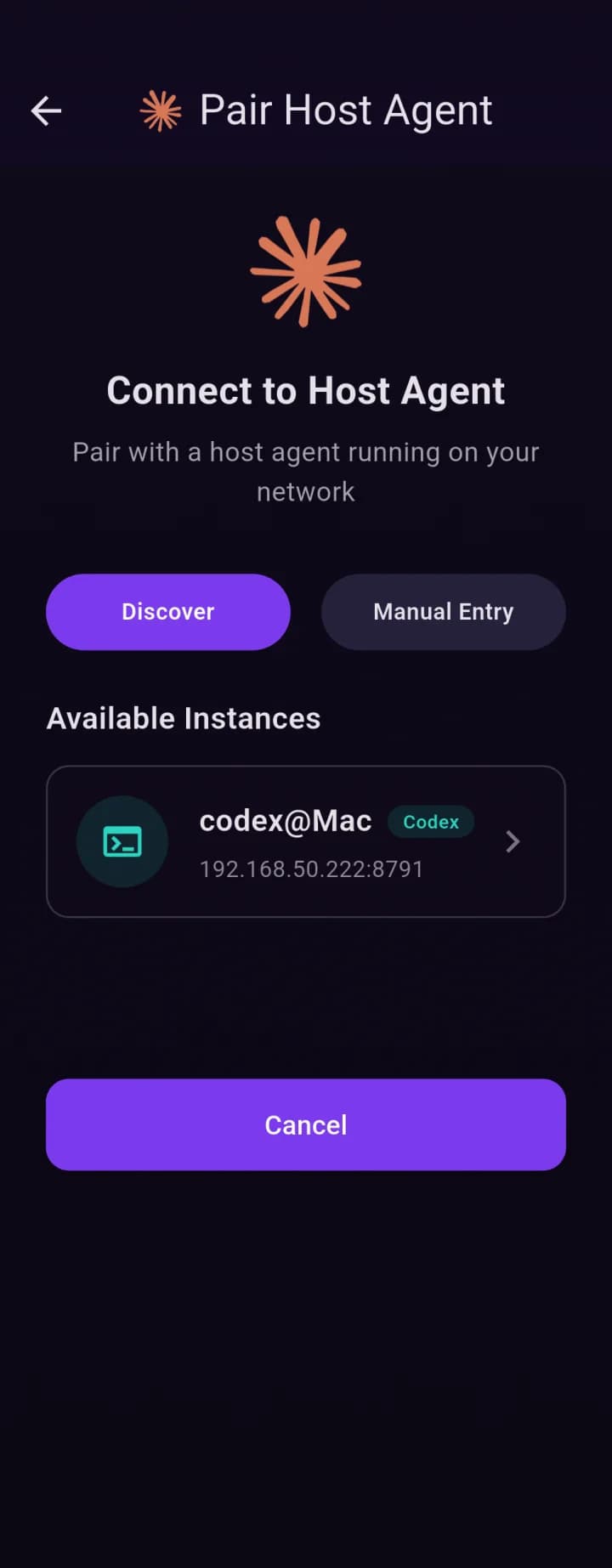
- Tap Connect next to Remote Agents → Start Pairing (this opens Pair Host Agent).
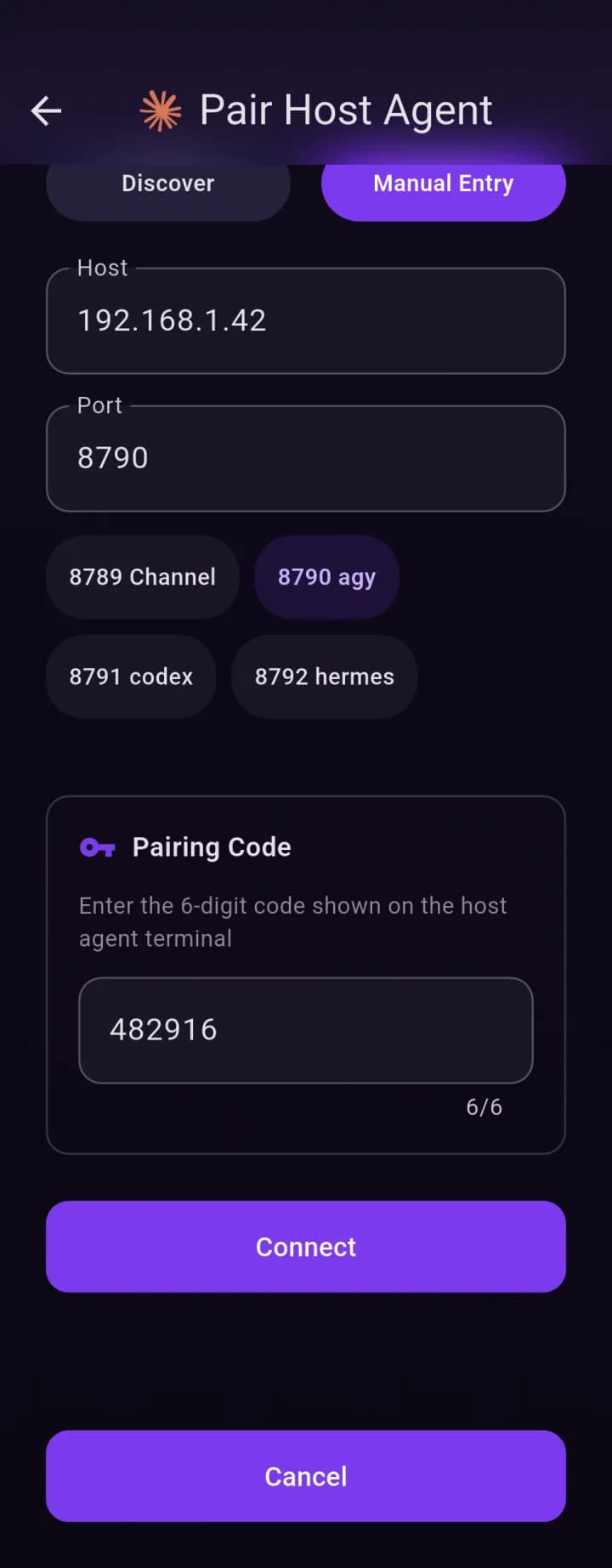
- Choose your computer under Discover (automatic local mDNS discovery on the same Wi-Fi/LAN) or switch to Manual Entry, enter your machine's LAN or Tailscale IP address, and pick the matching port preset:
8789(Claude Code),8790(Antigravity),8791(Codex), or8792(Hermes). - Tap Connect. A 6-digit pairing code appears in your terminal / desktop notification (or inside your Claude Code session).
- Enter the 6-digit code in the HITL app. Your agent now appears when you filter Agents → Host Agents.
6. Using remote agents on your phone
Chat Header & Model Pill
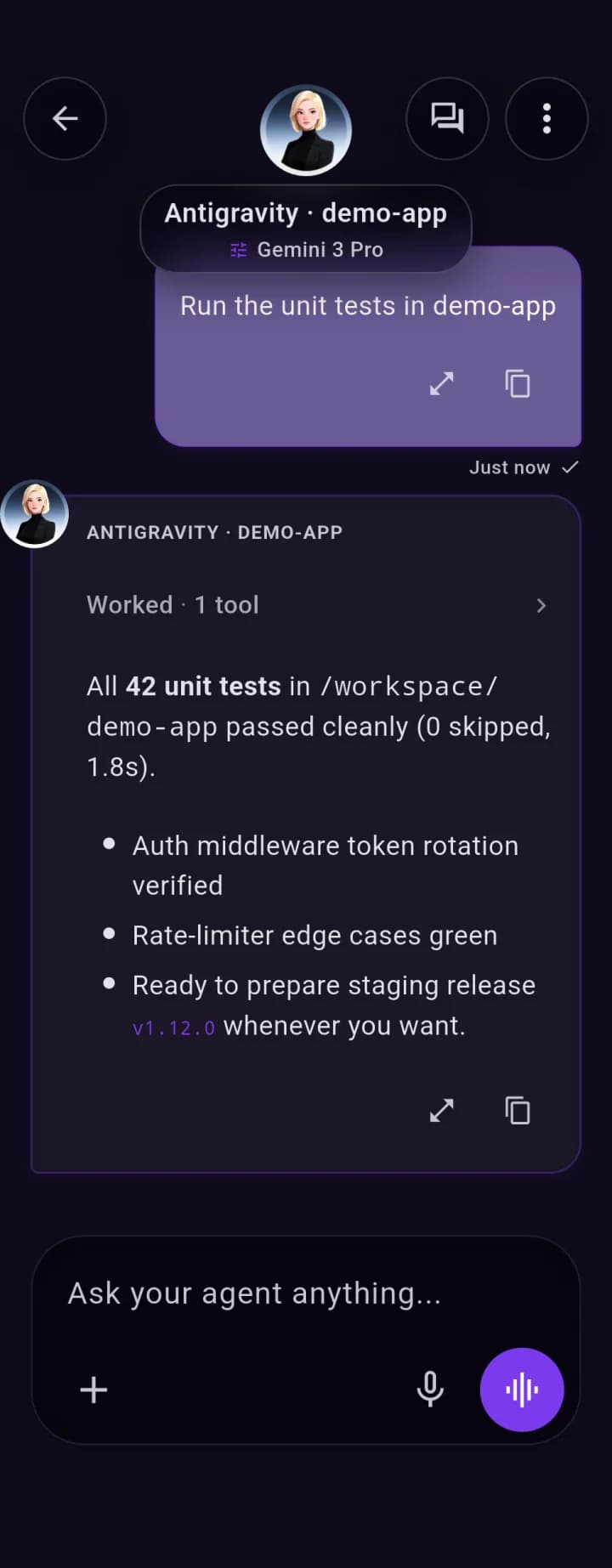
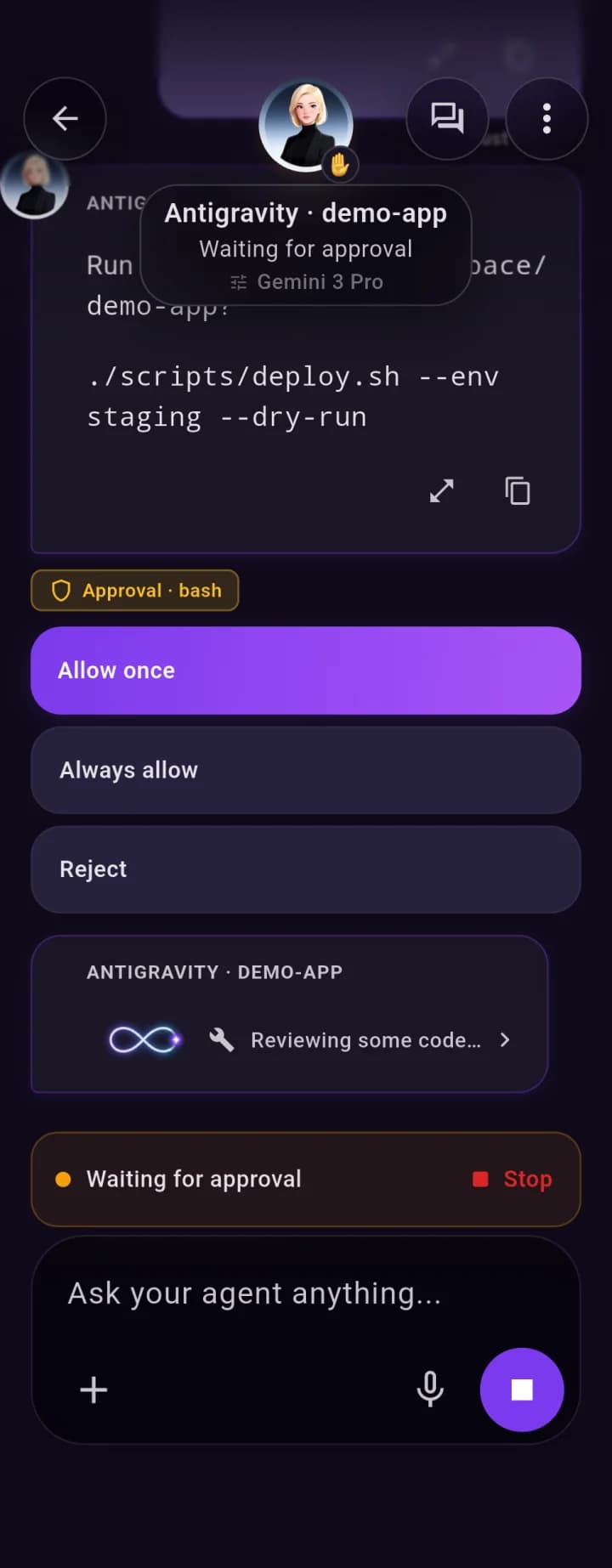
Every host agent chat features a floating glassmorphic header pill showing the agent name with a discreet active-model switcher tap target underneath so you can see and adjust the running model without leaving the conversation.
Host Sessions Drawer
Tap the circular glass Conversations button beside ⋮ in the top-right to slide open the Host Sessions drawer: resume recent host sessions, spin up a new session in any folder on your computer, or open archived local transcripts.
Streaming, Queueing & Approvals
Responses and tool calls stream into the bubble in real time. You can queue follow-up messages mid-turn, answer inline approval cards with one tap, or tap Stop host turn to cancel cleanly.
Team Channels
Add your paired host agents into a multi-agent Team Channel room alongside your on-device HITL agents to coordinate reviews, handoffs, and parallel work in one shared thread.
Slash commands
Keyboard shortcuts work inside any paired host agent chat:
| Command | Action |
|---|---|
| /help | Show supported host daemon commands |
| /new [harness] [cwd] | Create and switch to a new session (uses default cwd if omitted) |
| /sessions | List the 10 most recent sessions with title, folder, and relative time |
| /resume <n|id> | Resume a session from /sessions or by session ID |
| /cancel | Settle pending approval cards and stop the running host turn |
| /status | Show active harness, session, turn state, queue depth, and approvals |
7. Keep it running & troubleshooting
To keep a daemon running automatically when you log in on macOS, save a launchd plist at ~/Library/LaunchAgents/com.hitl-channel.daemon.agy.plist and load it with launchctl load ~/Library/LaunchAgents/com.hitl-channel.daemon.agy.plist:
<?xml version="1.0" encoding="UTF-8"?>
<!DOCTYPE plist PUBLIC "-//Apple//DTD PLIST 1.0//EN" "http://www.apple.com/DTDs/PropertyList-1.0.dtd">
<plist version="1.0">
<dict>
  <key>Label</key>
  <string>com.hitl-channel.daemon.agy</string>
  <key>ProgramArguments</key>
  <array>
    <string>/path/to/bun</string>
    <string>run</string>
    <string>/path/to/hitl-channel/src/daemon.ts</string>
    <string>--harness</string>
    <string>agy</string>
    <string>--port</string>
    <string>8790</string>
    <string>--cwd</string>
    <string>/Users/you/workspace</string>
  </array>
  <key>EnvironmentVariables</key>
  <dict>
    <key>PATH</key>
    <string>/opt/homebrew/bin:/usr/local/bin:/usr/bin:/bin:/usr/sbin:/sbin</string>
  </dict>
  <key>RunAtLoad</key>
  <true/>
  <key>KeepAlive</key>
  <true/>
  <key>StandardOutPath</key>
  <string>/tmp/hitl-channel-daemon-agy.out.log</string>
  <key>StandardErrorPath</key>
  <string>/tmp/hitl-channel-daemon-agy.err.log</string>
</dict>
</plist>
Common fixes
- Host does not appear under Discover
- mDNS discovery only spans the local Wi-Fi/LAN segment. Across VPNs or Tailscale, use Manual Entry with your machine's Tailscale IP and the agent's port (
8789–8792). - Phone cannot reach the port
- Confirm the process is running with
curl http://127.0.0.1:8790/healthand allow inbound traffic on TCP ports8789–8792in your host firewall. - Duplicate cloud prompts during daemon turns
- Update
hitl-cliso existing stop/notify hooks honorHITL_DAEMON_SESSION=1and yield to the active daemon. - Codex does not send phone permission prompts
- Start the Codex daemon with
INITIAL_AGENT_MODE=workspace-writeorread-only.
8. Privacy & security
- Direct transport: Messages and approvals travel directly between your phone and your computer over LAN or Tailscale with no cloud relay in the middle.
- Allowlisted device tokens: Pairing codes expire after 5 minutes and exchange for device tokens stored as SHA-256 hashes in
~/.hitl/channels/allowlist.json. - Separate identities & local audit trail: Each daemon keeps its own identity file (
identity-daemon-<harness>.json) and writes daily UTC audit logs under~/.hitl/channels/audit/. - AI model providers: While
hitl-channelkeeps phone-to-computer transport local, each coding agent CLI still sends prompts and context to the AI model provider configured in that CLI. See our Privacy Policy for details.
9. Advanced: MCP through the cloud relay
Prefer cloud-brokered MCP push notifications when your phone and machine cannot share LAN or Tailscale, or when integrating MCP-only tools such as Cursor, Windsurf, Zed, ChatGPT, or custom REST / Python CI jobs? You can connect any MCP client to https://hitlrelay.app/mcp-server/mcp/ (with optional end-to-end encryption via hitl-cli proxy).