Privacy and Trust
Manage tool trust confirmation tiers, background AI permissions, data sharing controls, backups, and account deletion.
Privacy and trust
HITL places you in complete control of how your agents access tools, process data, and handle background operations on your device.
Tool confirmation tiers
Every tool available to an agent is governed by an explicit trust level:
- Free (No Approval): The tool runs autonomously without interrupting you. Suitable for read-only data queries or routine calculations.
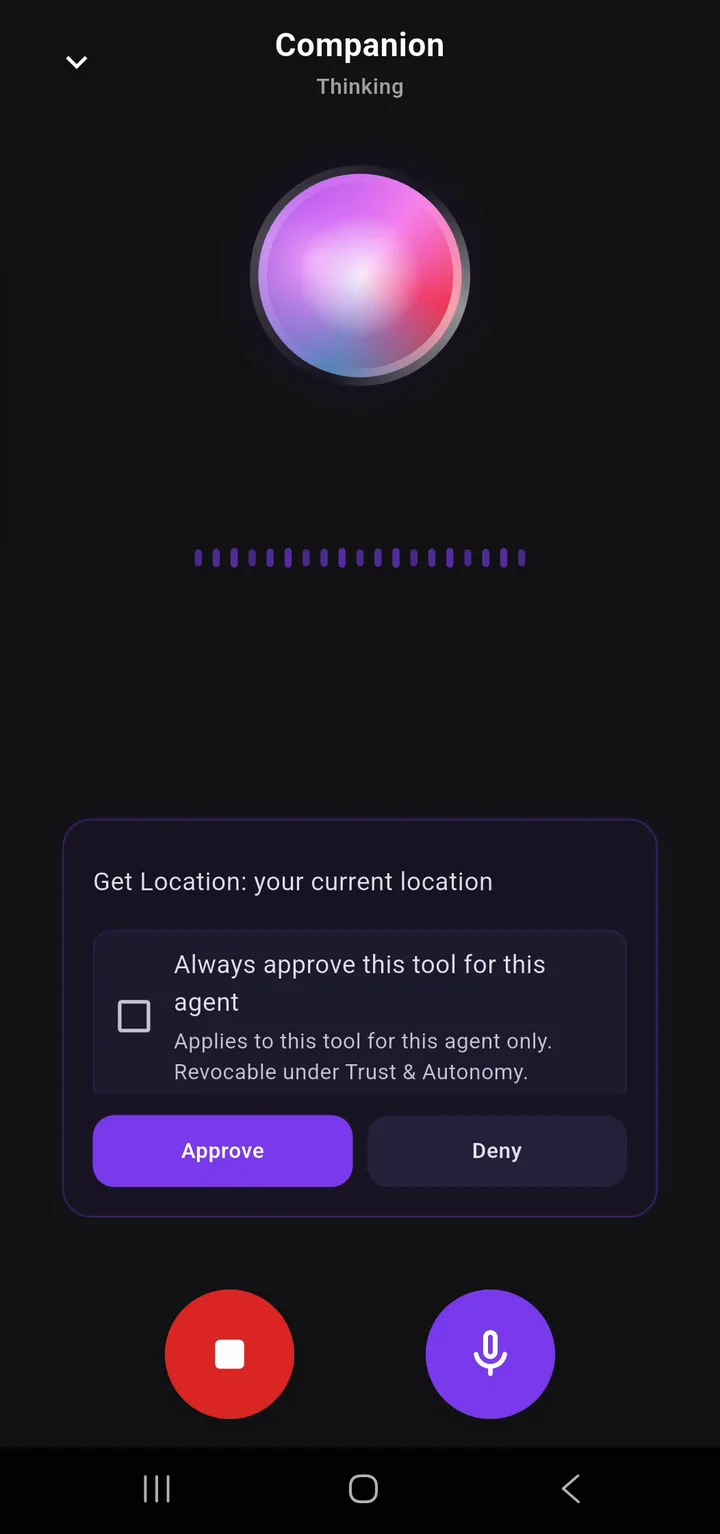
- Soft Confirm (Ask to Approve): The agent pauses execution to display an approval card in your active conversation or inbox. You can review parameters, approve the step, or deny it.
- Hard Confirm (Strict Guard): Strict human-in-the-loop protection. Applied to sensitive operations such as deleting data, financial actions, or external device state modifications.
To customize trust levels for an agent, open the agent configuration, select its tool list, and tap Override Trust Level to set specific confirmation policies per tool.
Background AI and device processing
To control whether agents are allowed to run tasks while you are not using the app:
- Navigate to Profile → Agent Engine & Data → Privacy & Background AI.
- The settings screen titled Background AI & Privacy opens.
- Toggle the Master Switch to immediately enable or suspend all background processing across all agents.
Data sharing and remote requests
Under privacy settings, you can control how your device interacts with external services:
- Share data with AI providers: Toggle this setting to determine whether prompts and tool payloads may be processed by remote AI providers.
- Allow human requests: Enable this setting to let remote desktop agents, coding tools, or collaborators send interactive requests to your mobile inbox.
Backing up and restoring your data
You can create snapshots of your personal agents, configurations, and conversation context:
- Open Profile → Support & System.
- Tap Backup Data to create a local archive of your app database and agent configurations.
- Tap Restore from Backup to restore your data from an existing backup snapshot. Backups are initiated manually; there is no automated background cloud backup.
Deleting your account
To permanently erase your profile and associated data:
- Go to Profile → Account.
- Tap Delete Account to remove your registration, synchronized secrets, and user identifiers.
Try this
- Try: Adjust tool confirmation tiers for my agents
- Try: Create a backup of my current agents and settings
- Try: Inspect my background AI settings