
Phone Superpowers
Use live browser watching, attach camera photos and files, run Apple Shortcuts, and use wake words.
Phone superpowers
HITL gives personal agents sensory and device capabilities on your phone: web page observation, camera and document attachments, opening other apps, system shortcuts, and hands-free voice.
In-app browser watching
Browse with an agent in the integrated browser:
- Header pill shows agent state.
- Live Watching: The agent reads page content, tracks forms, and extracts tables as you browse.
- Waiting on you: Solve a captcha, log in, or complete payment to resume.
Media, camera, and document attachments
Tap the composer attachment button to open the media picker sheet:
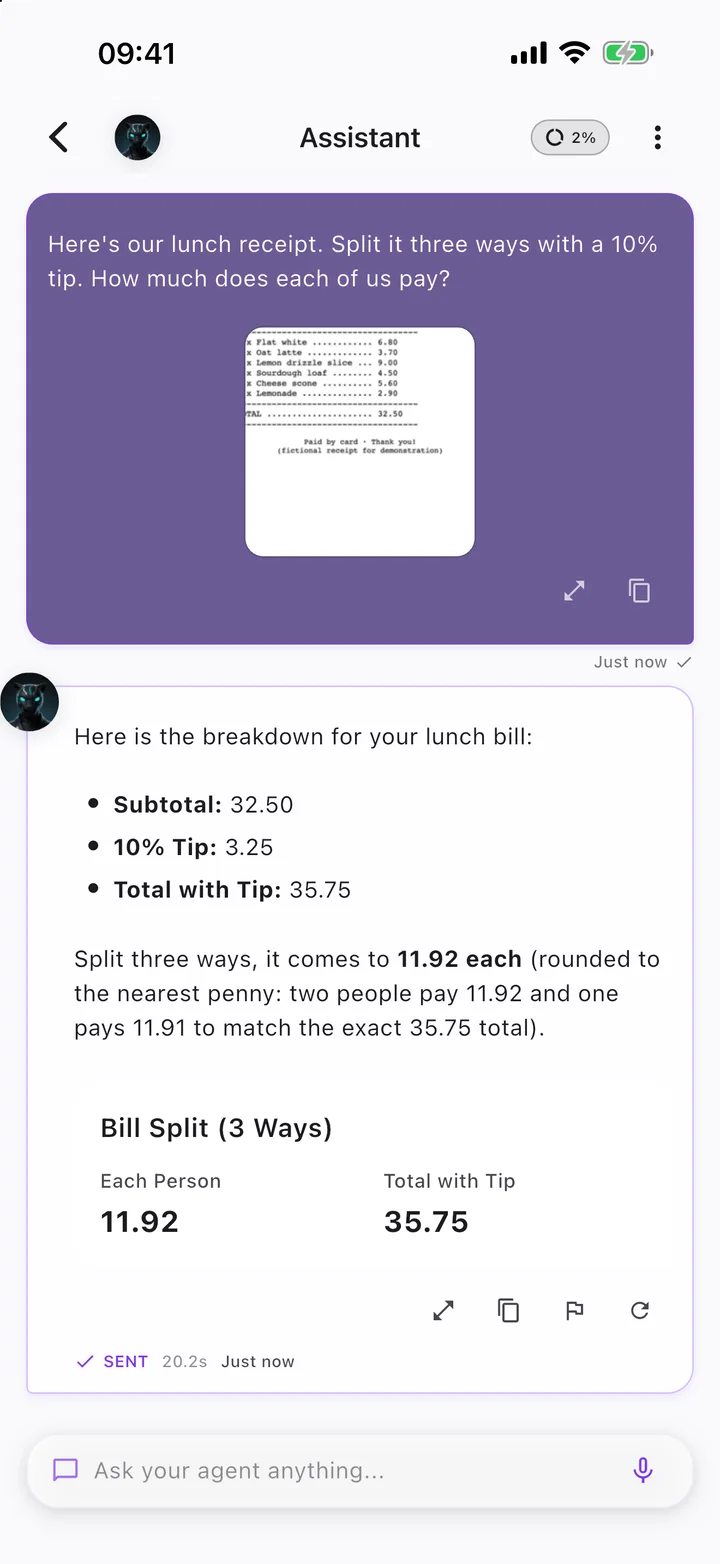
- Capture Photo: Take a camera picture for visual analysis or OCR text extraction.
- Choose from Gallery: Select photos, screenshots, or videos from your photo library.
- Attach Document / File: Upload PDF documents, spreadsheets, text files, or data exports for analysis.
Opening other apps
Agents can open other installed apps via deep links or web links on iOS and Android (such as WhatsApp, Maps, or Spotify). The agent prepares it and you finish it in that app; agents cannot operate or tap inside other apps for you.
Apple Shortcuts and Siri on iOS
Trigger agents and send instructions without opening HITL manually:
- Open Profile → Agent Engine & Data → Apple Shortcuts to reach the screen titled Apple Shortcuts.
- Tap Install HITL Router to add the automated routing workflow to your device.
- Siri voice commands: Use Ask HITL or Ask Agent, or invoke the system intent Ask HITL Agent directly.
Run due HITL agents (iOS 27)
Scheduling on iPhone is best effort: iOS decides when HITL runs in background. Background pushes wake HITL for short runs; longer runs rarely finish in time. This setup gives HITL four set daily times to finish what is due. HITL sends the shortcut; a few steps in Shortcuts are manual.
- Get the shortcut: open Profile → Agent Engine & Data → Apple Shortcuts, tap Set up. Shortcuts opens a preview of Run due HITL agents; tap Set Up Shortcut. If Shortcuts opens on a shortcut you were editing, close it first.
- Keep the four times: tap Skip Setup across the 4 import questions to keep defaults (or Next ×4 → Add Shortcut). If "You already have a shortcut named…" appears, tap Keep Both (never Replace).
- Edit the shortcut: in Shortcuts, press and hold Run due HITL agents, then tap Edit (a tap runs it). Tap each time's circled arrow.
- Turn on all four times: all 4 triggers arrive OFF. Switch on Automation (no confirmation prompt; leave Notify off); repeat for all 4. The single action is unchanged.
A time is Active when seen running within 20 minutes of it. Rows show Active (with Last seen), Waiting for the first run, or Not seen at with Fix times. After 2 days unseen, HITL prompts to tap Fix times and sends at most one daily reminder; toggle with Missed-run reminders. Edit the shortcut instead of re-adding the link. Say it works only when active.
iPhone Mail
There is no per-email automation. At each of the four times HITL also pulls new mail from iPhone Mail for agents that use it, and opening HITL when a time is due does the same. Email stays on device.
Hands-free wake word
Interact with your Companion completely hands-free:
- Go to Profile → App Experience & Voice → Wake Word Setup.
- Say "Hey HITL" near your phone to wake Companion and start voice interaction without tapping the screen.
Try this
- Try: Analyze this screenshot and summarize the main points
- Try: Watch this web page and extract the comparison table
- Try: Configure my hands-free wake word settings